80 GB of Files, Zero Google Drive: How We Built Our Own File Manager
Hopes & Dreams — Sovereign Builds, Part 2
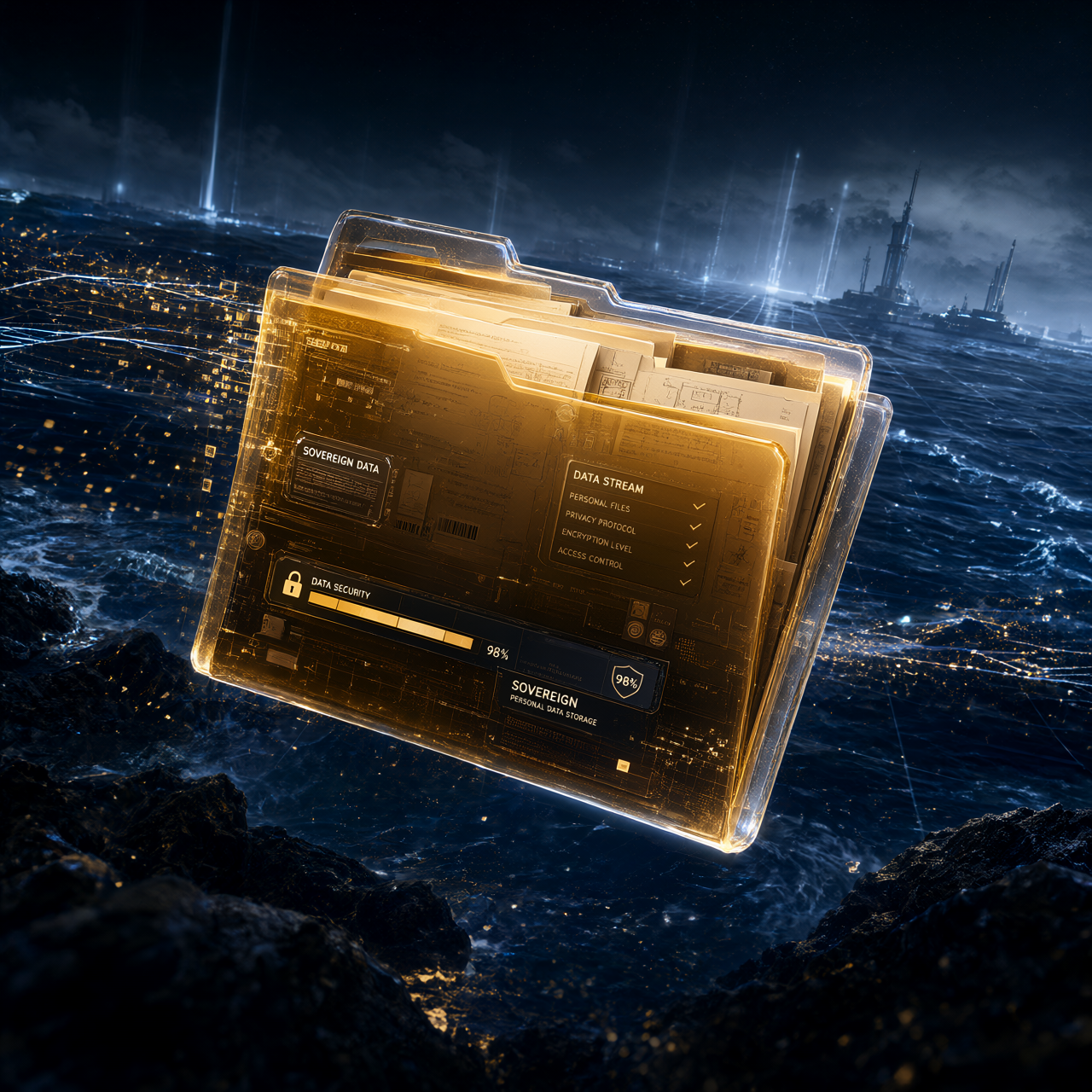
Google Drive had every file we'd ever saved. Eighty gigabytes of them — documents, videos, APKs, scripts, website files, backups, the lot. One day we decided we didn't want a tech company holding our files any longer — so we pulled it all off Google, off the cloud, and onto a server in our own house, and built a native Android app to browse it. No cloud, no tracking, no "storage full" upsell, no ads in your files. Just our files, on our hardware, that we control.
This is the story of how we did it — the architecture, the process, and the six bugs that nearly broke it. And at the end, a step-by-step you can follow to do the same thing with your own files.
Why we did this
Google Drive is convenient. That's the whole problem. It means Google stores, processes, and can use your entire file history — every document, every video, every backup. For a privacy-first household, that's a hard line.
The goal wasn't just "move my files." It's a de-Google campaign: replace Google services one by one with sovereign apps we build and run ourselves. Photos was Phase 1 (the 21,000-photo library). Drive is Phase 2. The endgame is a fully de-googled phone running only our own apps.
We set one iron rule before touching anything: verify before we delete. Nothing gets removed from Google or the phone until we've proven every single file is safely on our own server. (We'll come back to this — it's the part that makes the whole thing safe.)
Where we started (the numbers)
- 7,232 files, ~80 GB, in a folder tree that mirrors the original Drive
- Two 42 GB zips from the Google Takeout (Drive exports, not photos re-export)
- Contents: APKs, videos, documents, scripts, website files, backups, an "Unorganized" catch-all, and a "My Computer" folder
The Takeout was bigger than we expected. We'd guessed "a couple GBs at most" — it turned out to be 84 GB (two 42 GB zips). That's the thing about cloud storage: it quietly accumulates. You don't notice the 42 GB of APKs and the 40 GB of videos until you're staring at the download progress bar.
The architecture (the part that makes it feel simple)
The naive approach — "download all 80 GB to the phone" — is terrible. It would eat all your storage, and every app open would wait on a multi-gigabyte transfer. Instead we kept it deliberately simple:
- A single-file Python server (the same pattern as our other home services), bound to a local port and tailnet-only — reachable only on our private Tailscale network, never the public internet. It exposes six endpoints: list, download, upload, mkdir, delete, rename.
- A native Android app (Kotlin, single-activity, programmatic UI) that browses the folders, shows file-type icons, downloads files straight to the phone's Download/ folder, uploads files back, creates folders, and deletes or renames in a long-press multi-select.
Net effect: the phone never holds the 80 GB. It browses a lightweight index of folder names and file metadata, and only pulls a file when you tap it. Uploads go straight from the phone to the server. The whole thing feels like a local file manager — because it is one, just over a private network.
The server
The server is a single Python file. It roots at a local folder (the Takeout import) and exposes:
GET /api/list?path=— the folders and files at a path (dirs first, then files)GET /api/download?path=— the raw bytes of a filePOST /api/upload?path=&name=— save a file to a folder (raw body)POST /api/mkdir?path=— create a folderPOST /api/delete?path=— delete a file or folderPOST /api/rename?path=&new=— rename a file or folder
Every path goes through a realpath containment check that blocks directory traversal — no .., no absolute paths, no symlink escape. The root is the local folder, and nothing can get out of it.
It's published over HTTPS via tailscale serve, so the app talks to a private https://…/drive URL. One real-world wrinkle: uploads are raw-body (not multipart) — the app sends the file bytes directly with a ?path=&name= query, which is simpler to handle on both ends.
The app
Native Android (Kotlin), single-activity, programmatic UI (no XML layouts). It uses OkHttp for the network calls and coroutines for the async work. The flow is Folder → List → (Download / Upload / Mkdir / Delete / Rename). The list shows folders first (alphabetical), then files (alphabetical), each with a file-type icon, size, and date. Tapping a folder drills in; tapping a file downloads it to the Download/ folder (via the MediaStore API, so no storage permission is needed on Android 10+). Long-press enters a multi-select mode with a bottom toolbar for delete and rename.
How we built it (three sessions)
Session A — Takeout import. We downloaded the two 42 GB zips, unzipped them to a local folder, stripped the Takeout/Drive/ wrapper prefix, and verified the file count. Result: 7,232 files, 80 GB, structure preserved.
Session B — Server. We wrote the Python server (six endpoints, path traversal protection), bound it to a local port, and published it over the tailnet. We tested every endpoint — list, download, upload, mkdir, rename, delete — and confirmed the traversal block.
Session C — App. We built the Android app (folder browser, download, upload, mkdir, delete, rename), installed it on the phone, and verified it against the live server. Then we gave it a proper icon — a folder motif matching the Photo Album's style.
The war stories (the bugs that nearly broke it)
This is the good stuff — the parts that weren't smooth. Every one of these was a real bug we hit and fixed, and each one teaches something.
Bug 1 — The build failed: color constants were Longs.
The app's color constants (0xFF0D1117, 0xFF58A6FF, etc.) exceeded the Int range, so Kotlin inferred them as Long. But setBackgroundColor() expects an Int — so the build failed with "Type mismatch: inferred type is Long but Int was expected." Fix: append .toInt() to each color constant. A small thing, but it cascaded into a dozen downstream errors (every setBackgroundColor call failed, which broke the addView calls that depended on them).
Bug 2 — scope.cancel() was an unresolved reference.
The app cancels its coroutine scope in onDestroy(), but cancel() is an extension function in kotlinx.coroutines — it's not a method on CoroutineScope. Without the import, the build failed with "Unresolved reference: cancel." Fix: add import kotlinx.coroutines.cancel. (The other apps in the series didn't cancel their scopes, so this was new territory.)
Bug 3 — "Class is not allowed here" (the nested ViewHolder).
The RecyclerView's ViewHolder (VH) was defined as a nested class inside the inner EntryAdapter class. The Kotlin parser choked on it — "Class is not allowed here" — even though the structure looked correct. Fix: hoist VH out to a top-level class (it doesn't need access to the outer class's state) and have EntryAdapter reference it. The build passed.
Bug 4 — adb: device not found (the TLS serial).
The install script used the device's short serial number, but the adb server was connected over TLS with a longer serial (the short number plus a connection suffix). The short serial didn't match, so adb couldn't find the device. Fix: use the full serial from adb devices. (A subtle one — the device was connected, just under a different name.)
Bug 5 — The list was empty (the adapter was never attached).
The app loaded the folder data correctly (the footer showed "17 folders, 117 files"), but the list area was blank. Root cause: the RecyclerView was created but the adapter was never set on it — the adapter field was null, so notifyDataSetChanged() did nothing. Fix: create the adapter and assign it (adapter = EntryAdapter(); rv.adapter = adapter). The list populated immediately.
Bug 6 — File and folder names were blank (the divider ate the space).
After fixing Bug 5, the list showed icons, sizes, and dates — but no names. Every row was just an icon and a size/date, with the name field empty. Root cause: each row was a horizontal LinearLayout with the name set to width=0, weight=1 (so it'd take the remaining space), but a divider was also added to the row with width=MATCH_PARENT — which grabbed the full width and left the name with zero space. Fix: remove the divider from the row (it was a visual nicety that was breaking the layout). The names appeared.
The result
A native app that opens instantly, browses 7,232 files by folder, shows file-type icons, downloads files straight to the phone's Download/ folder, uploads files back to the server, creates folders, and deletes or renames in batches — all from our own home server. The phone never holds the 80 GB; it browses a lightweight index and pulls files on demand.
And because the files were left as-is (no stripping of metadata, no deduping of pinned duplicates), we can browse the full Takeout and decide what to keep and what to throw away — at our own pace, on our own hardware.
The bigger picture (the de-Google campaign)
Drive is Phase 2. The queue is Keep → Calendar → Gmail → Maps → YouTube. Every sovereign app gets a private repo from day one (backup and history); the ones with universal value — like this file manager — get polished and posted publicly for others to use. These builds are also the war stories for Hopes & Dreams: real, technical, honest.
The endgame is GrapheneOS on the Pixel 9 (officially supported through August 2031), running only our own apps. We accepted the tradeoffs: the smartwatch link goes away, and the AOSP camera replaces the Pixel camera. For us, that's a fair price for a phone that answers only to us.
How you can do this too (the reproducible process)
If you want your own sovereign file manager, here's the exact process, in order. None of this requires a big server — a Raspberry Pi or any always-on box with a few hundred GB works.
- Get your files out of Google. Run a Google Takeout export for Drive. Download the zips. This is your cloud copy.
- Import into a local folder. Unzip the Takeout, strip the wrapper prefix (e.g.
Takeout/Drive/), and preserve the folder structure. Verify the file count. - Build a tiny server. A single-file Python server that exposes list, download, upload, mkdir, delete, and rename. Bind it to a local port and make it tailnet-only (Tailscale) so it's never on the public internet. Add a realpath containment check so paths can't escape the folder.
- Build the app. A native Android app (Kotlin) with a folder browser. Show folders first, then files, with file-type icons, size, and date. Tap a folder to drill in; tap a file to download it to the Download/ folder (via MediaStore, so no storage permission). Add upload (via the Storage Access Framework), new folder, and long-press multi-select for delete/rename.
- Publish over the tailnet. Use
tailscale serveto expose the server over HTTPS on your private network. The app talks to that URL — no public exposure. - Verify before you delete. Browse the full Takeout in the app. Confirm every file you care about is present and correct. Only then stop using Google Drive and (optionally) delete the cloud copy.
- Keep it running. Use the app daily — download files, upload files, organize folders. Your files live on your hardware, and they answer only to you.
The whole thing is a few hundred lines of Python and a single Kotlin file. The hard part isn't the code — it's the discipline of verifying before you delete.
What's next
Browse the files, decide what to strip and what to keep (the Takeout has some junk — metadata files, pinned duplicates — that we'll clean up once we've seen everything). Then stop using Google Drive and run the final verification. After that, on to the next Google service in the queue — Keep is up.
This is Part 2 of the de-Google series. The next war story: getting our notes off Google Keep.